
Connect to the office network from anywhere
Six steps in the app - then file shares, databases and remote desktops answer at their usual address.
No credit card needed · cancel anytime · secure checkout with Stripe
Into the office network, step by step
From home, a hotel or a customer site: one tap puts your laptop or phone into the office network - direct, encrypted, without a VPN gateway.
- Awacino on your laptop or phone
- Awacino on one device in the office network
- A company account - every plan, also Company Free
- 1
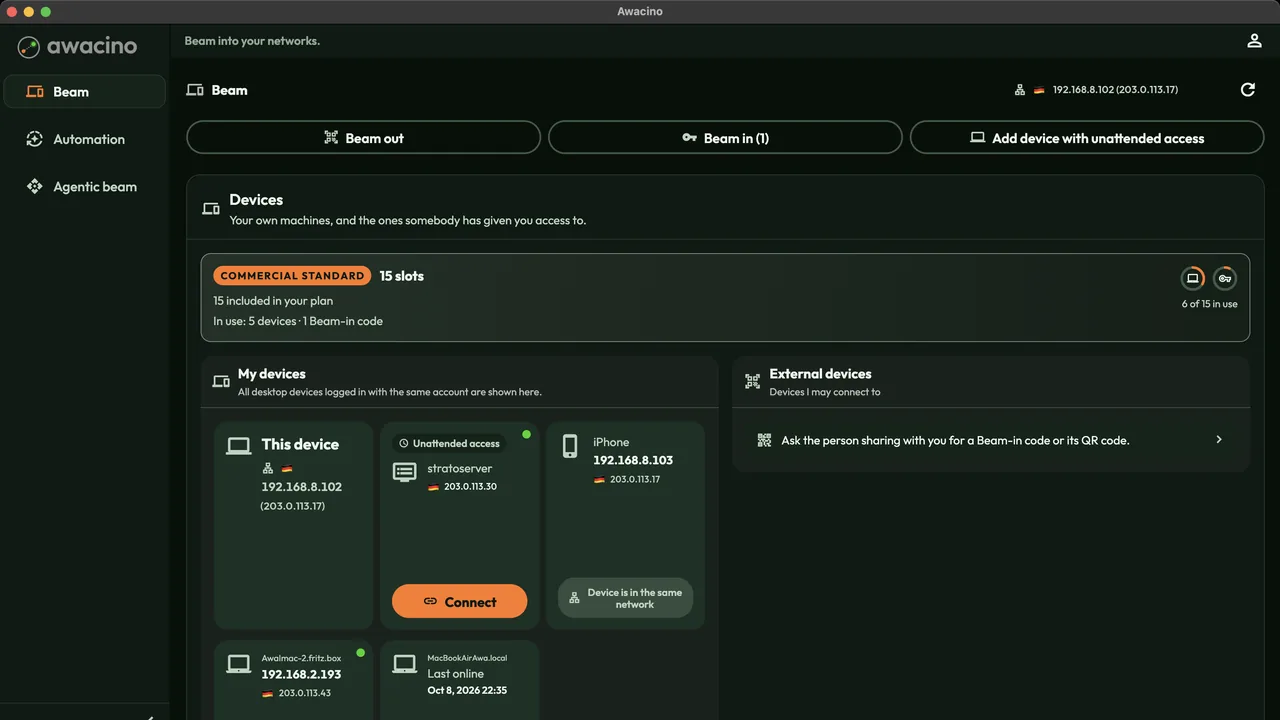
Find the office device
Open Awacino. Under My devices you see every company device you may reach, with its status. Tap Connect on the office computer or server.
- 2
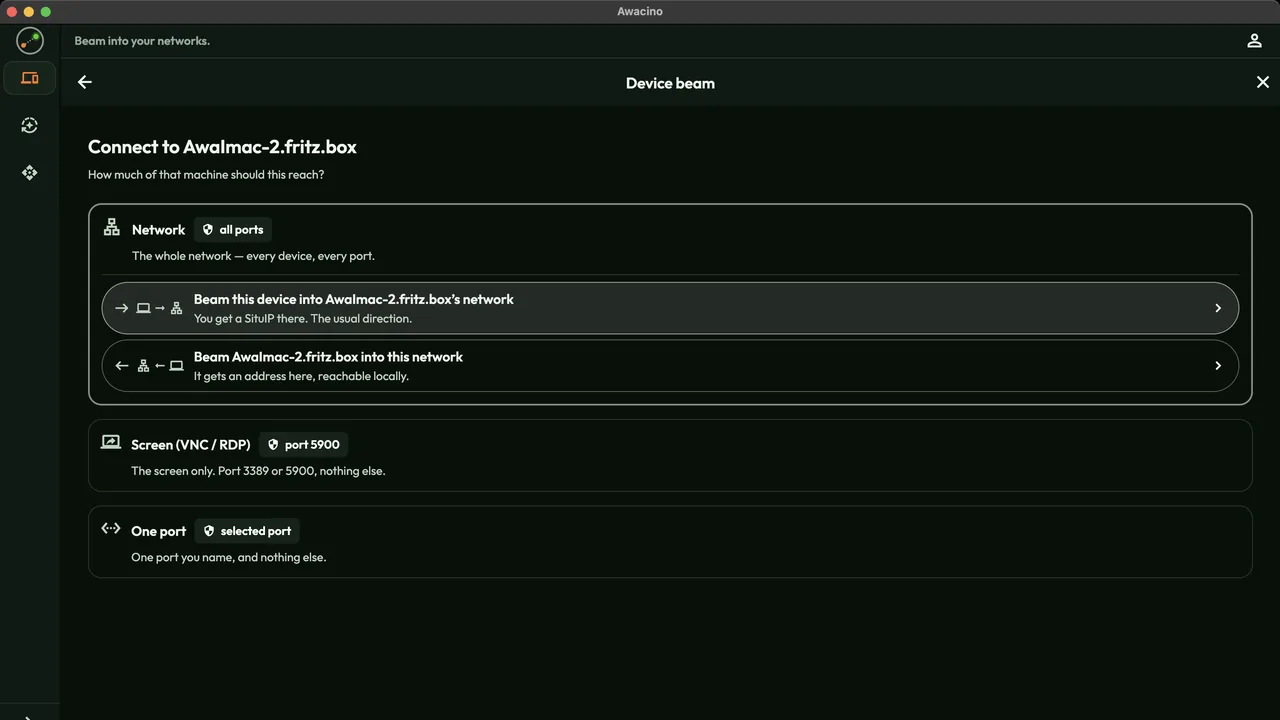
Choose how much you reach
Network - the whole office network. Screen - only that computer's screen. One port - one database or web app. For the office, pick Beam this device into the network.
- 3
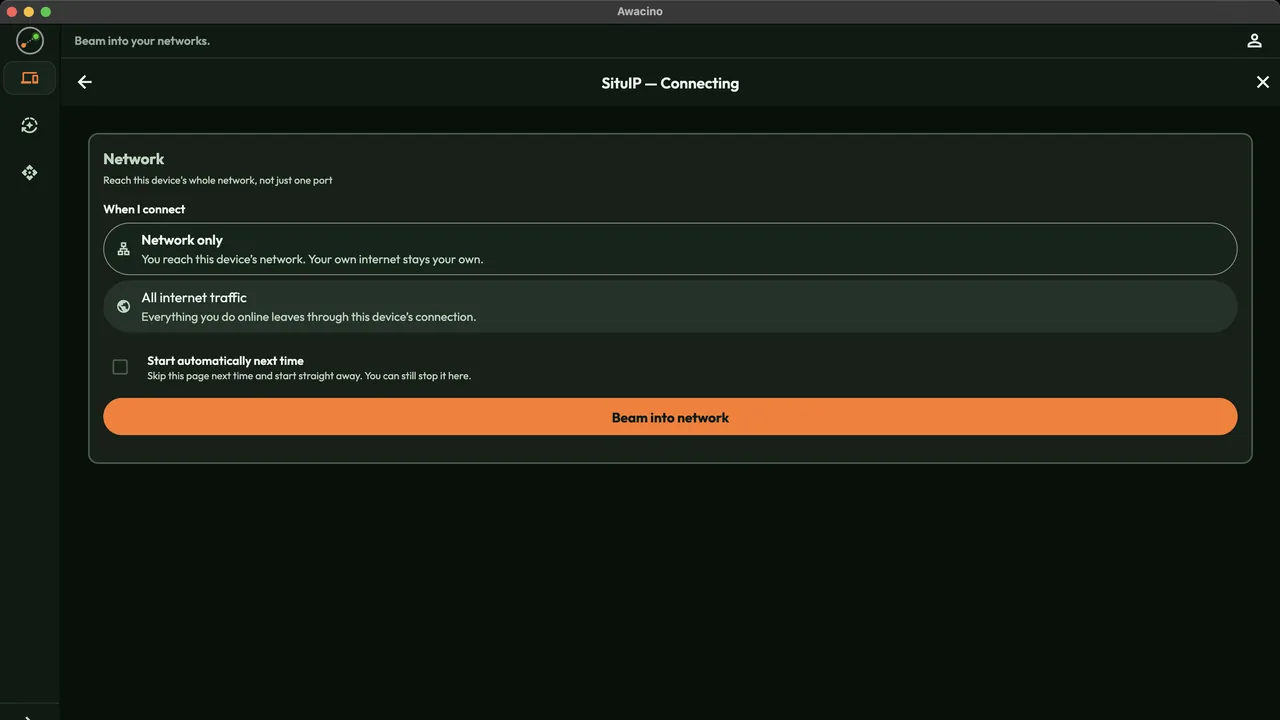
Beam into the network
Leave Network only selected - only office traffic goes through the beam - and tap Beam into network.
Tick Start automatically next time, and the next connection needs no tap at all.
- 4
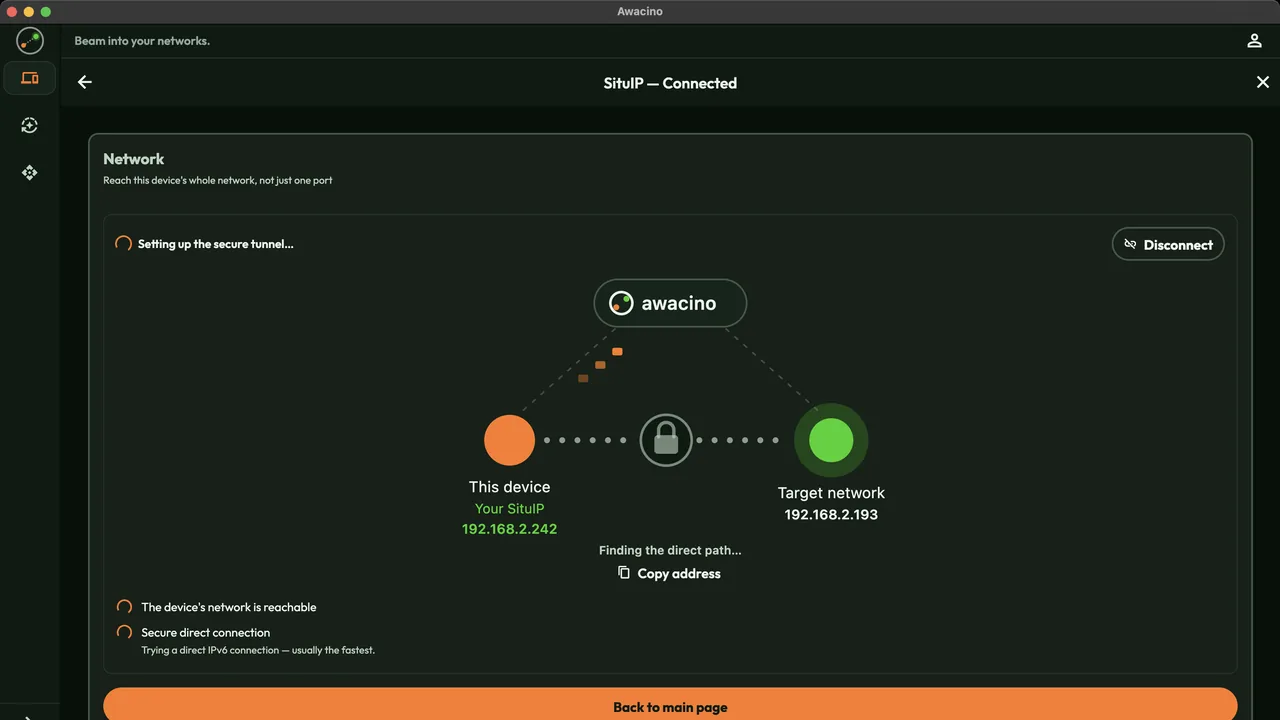
The direct path is set up
Awacino finds the direct path between your device and the office network and encrypts it end to end. Nothing in the office is opened to the internet.
- 5
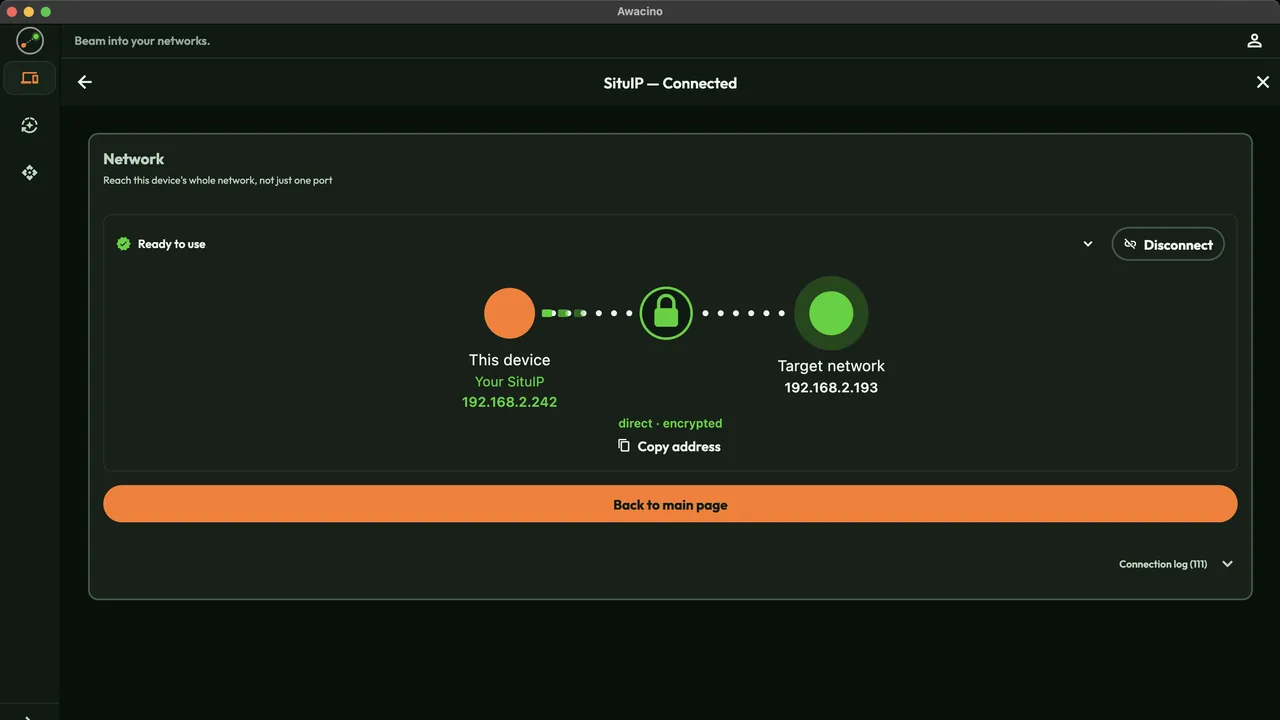
Ready - with your own office address
Ready to use: your device has its own address in the office network, its SituIP. Open file shares, the ERP, databases and remote desktops by their usual address.
Your SituIP is a real address in that network - printers, NAS and servers see you like any office device.
- 6
See the connection and end it
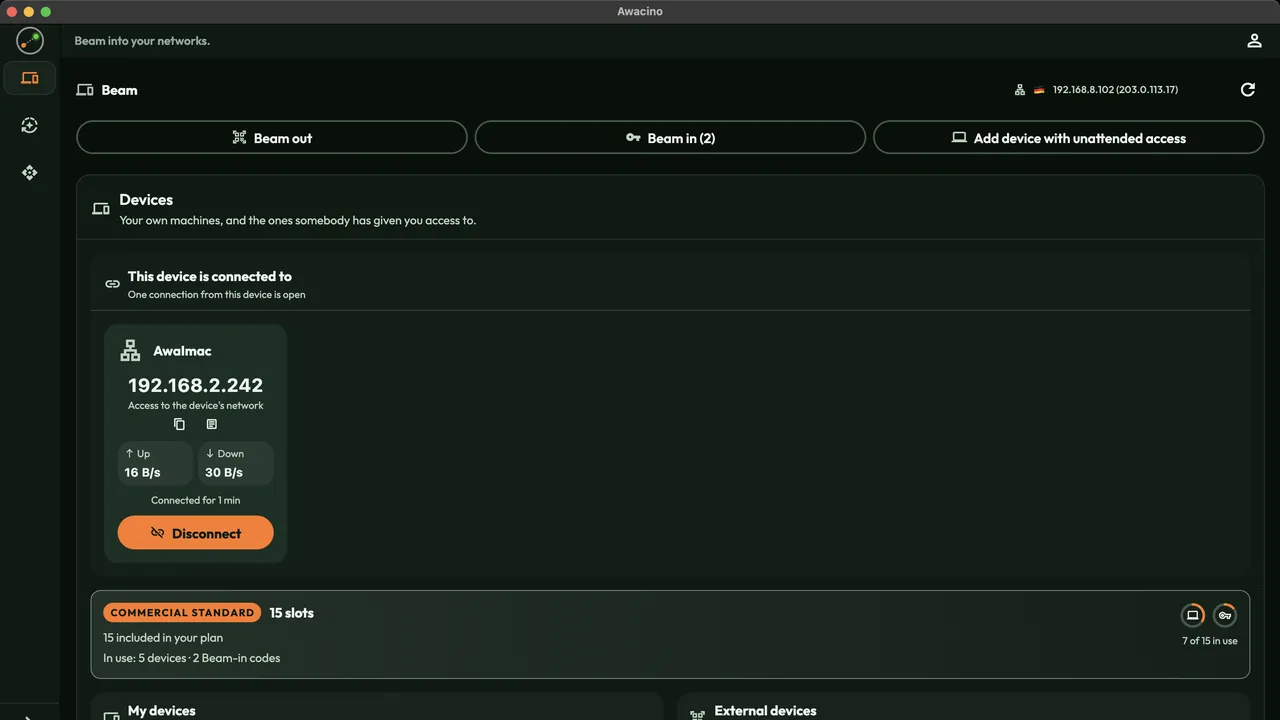
On the main page the office device shows what is connected, the traffic in both directions and how long. Disconnect ends it at once.
Put your team into the office network today
Every company plan: 30 days free, no card. Or start on Company Free.
No credit card needed · cancel anytime · secure checkout with Stripe