Tutorial
Back up your holiday photos to the storage drive at home
Rita shows how her phone beams into her home network from the beach and copies the photos to the storage drive in the living room - step by step, in the real app.
Step by step
 Step 1
Download Awacino
Install the app on your phone and on one device at home - a computer, a Raspberry Pi or an old phone. The download page has every platform.
 Step 2
Your devices in one list
Sign in with the same account on both. Your phone and the device at home appear under My devices.
 Step 3
Beam into your home network
Pick the device at home and choose "Beam this device into the network". The whole home network, every port.
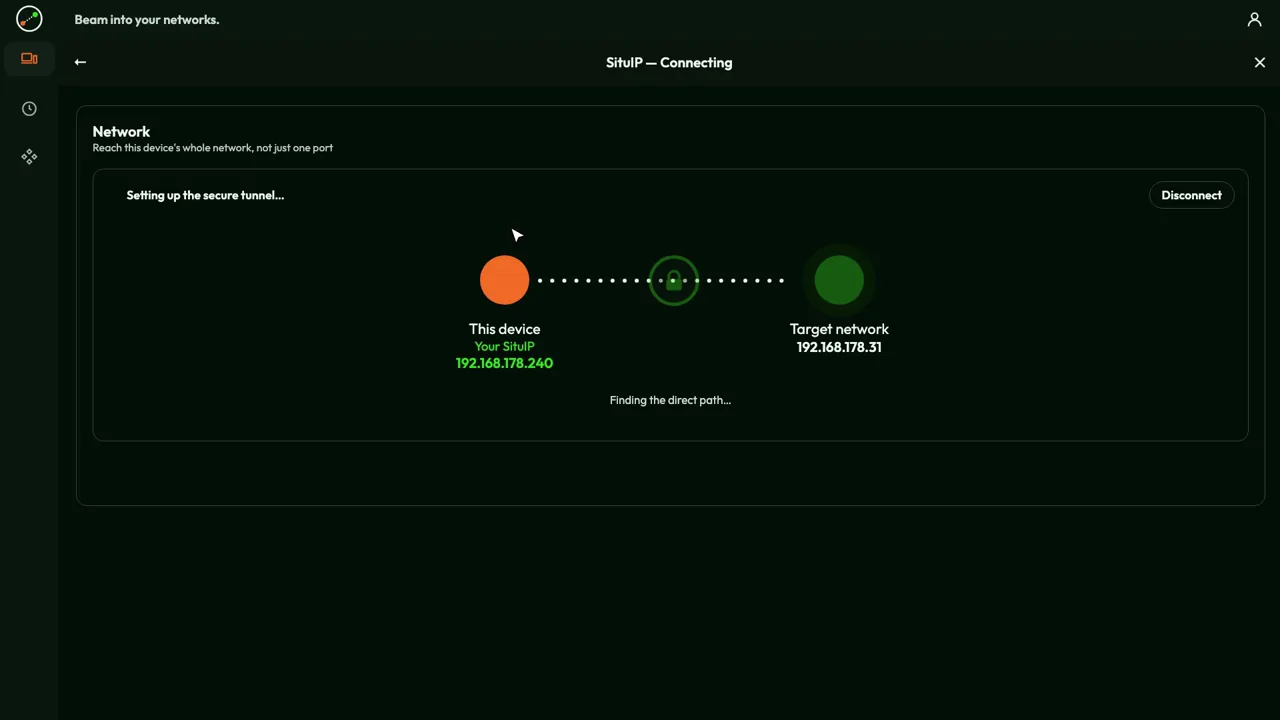 Step 4
Connected - direct and encrypted
Awacino finds the direct path and gives your phone a SituIP, a real address inside your home network.
 Step 5
Copy the photos home
Open the storage drive as you would at home and copy the photos. They travel directly between your devices, not through a cloud.