Create a Beam in: let someone into your network
Jonas, Ben's IT partner, needs the office server for a day. Ben creates a Beam-in code, Jonas enters it in Awacino - and Ben switches it off again with one tap.
Ben about Awacino
- What I like
- A Beam-in code lets Jonas in exactly as far as I choose - and one tap switches it off again.
- Use case
- I use Awacino to let our IT partner into the office server for a day without handing out passwords or VPN accounts.
- What works better than with alternative solutions
- No permanent access to clean up later and no open port on the firewall - the access ends when I switch it off.
Step by step
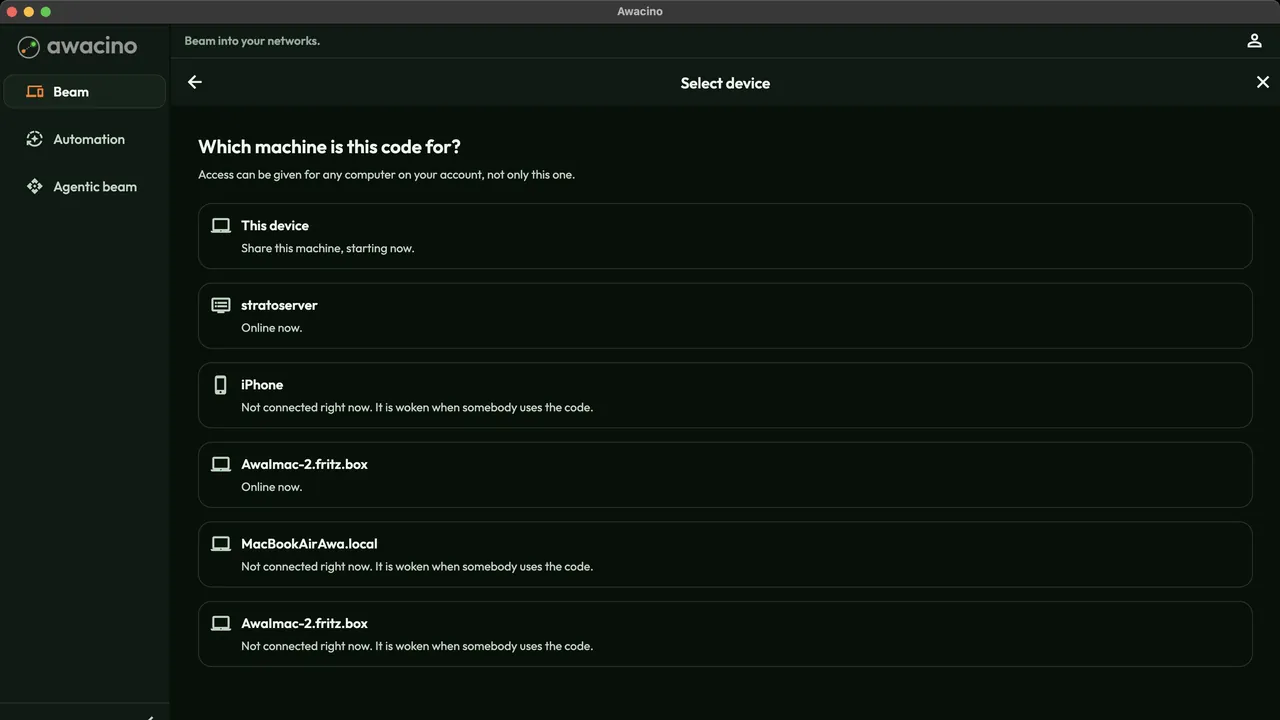 Step 1
Pick the device
Open Beam in, tap Grant device access and pick the device the code is for - any computer on your account.
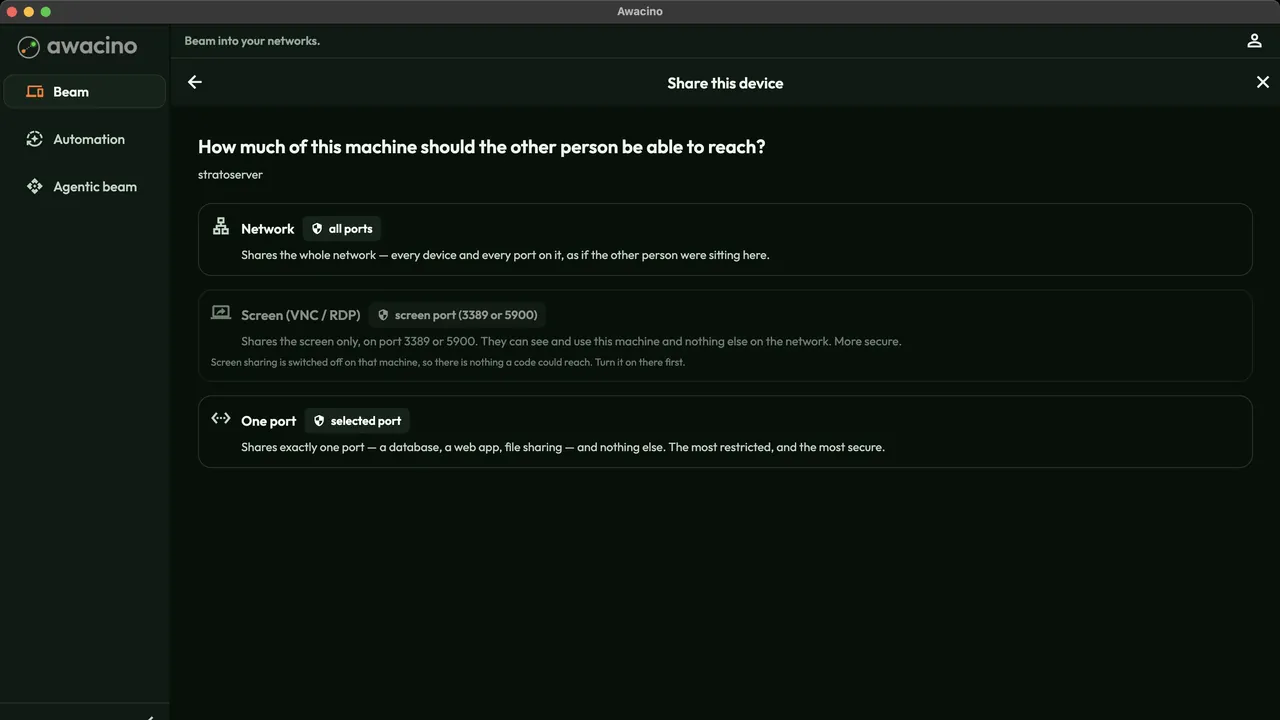 Step 2
Choose how much
The whole network, only the screen (VNC / RDP) or one port. The other person reaches exactly that and nothing more.
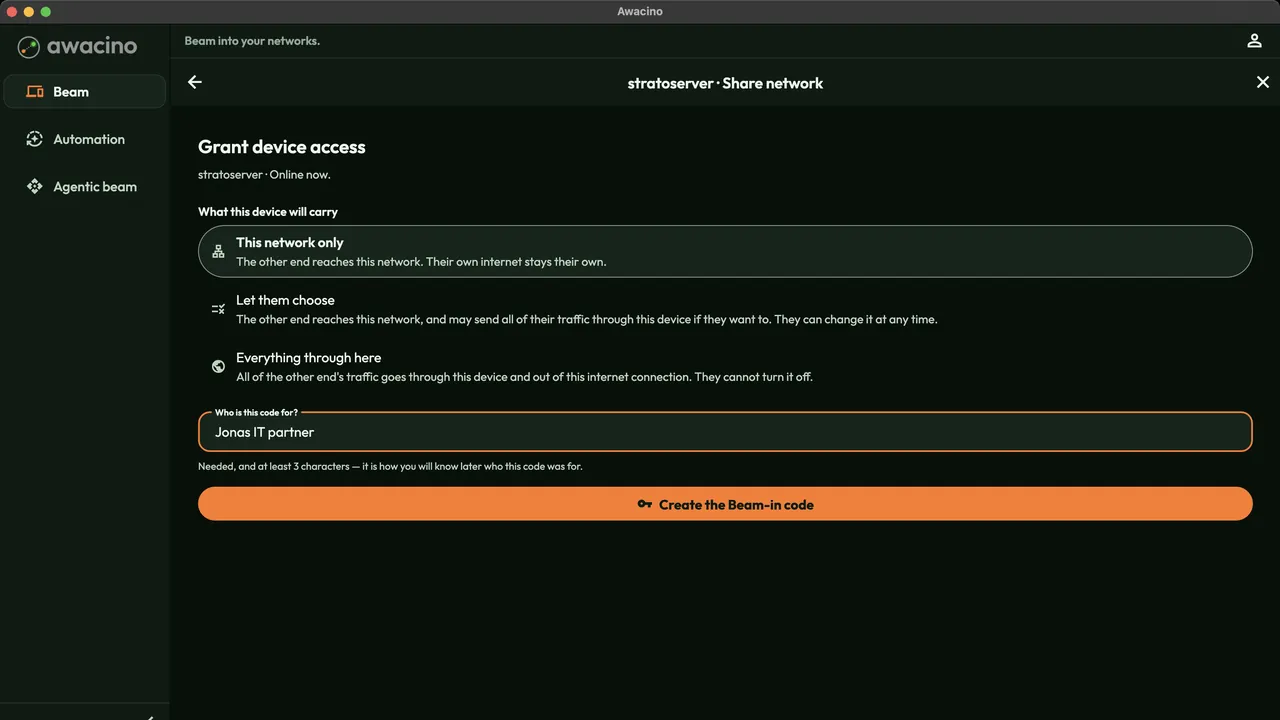 Step 3
Who is it for?
Choose what the device carries - for example "This network only" - enter who the code is for and tap Create the Beam-in code.
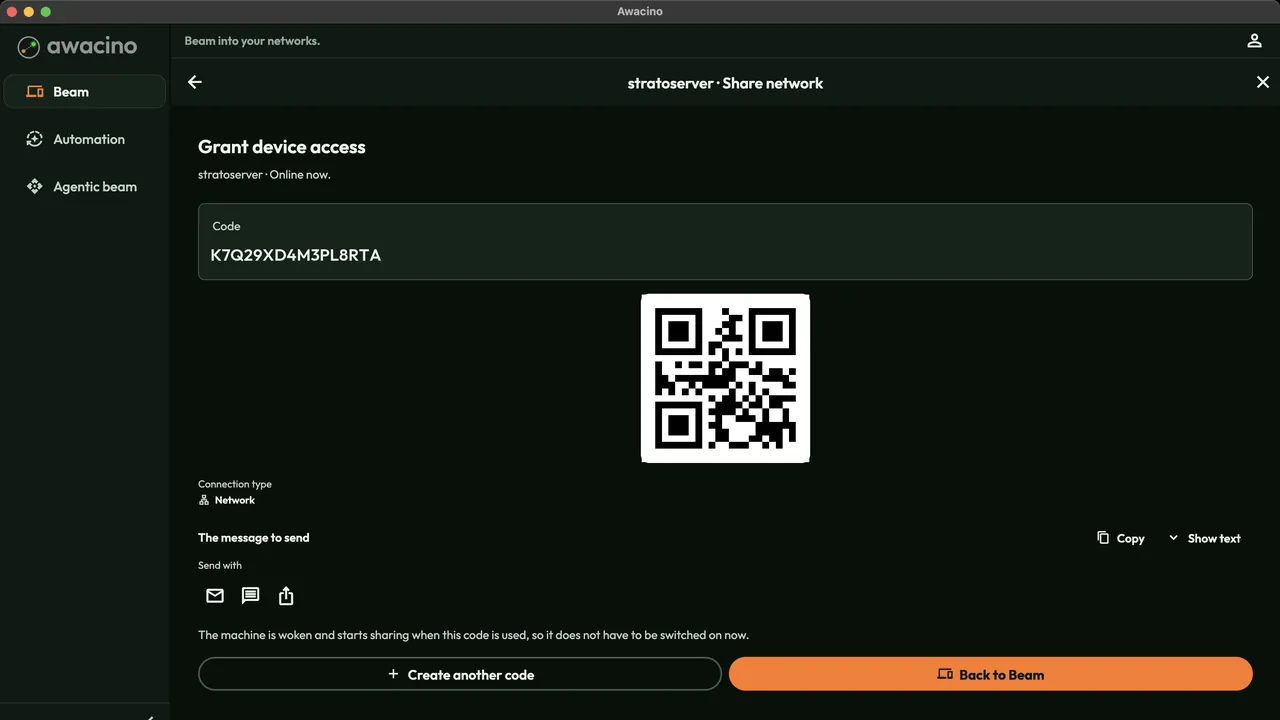 Step 4
Send the code
Awacino shows a 16-character code and a QR code. Send it by mail or message.
 Step 5
Enter the code
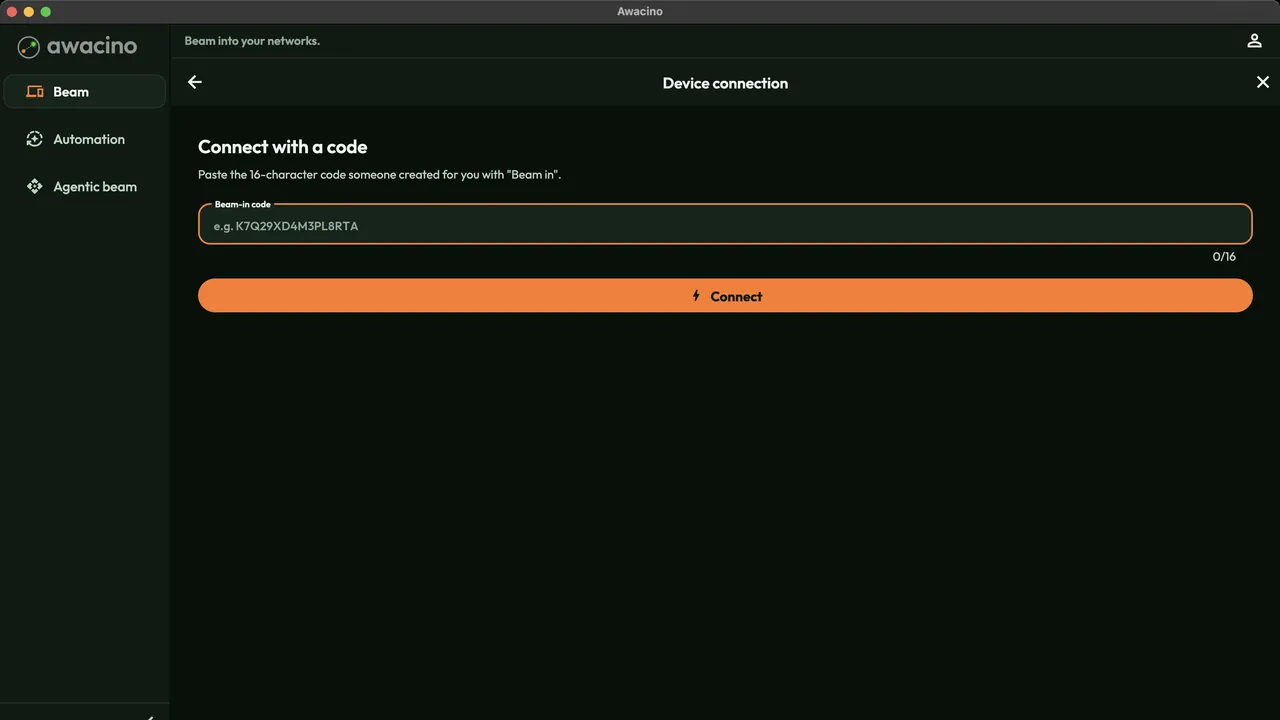
Jonas opens Beam out, Connect with a code, pastes the code and taps Connect. He is in Ben's office network.
 Step 6
Switch it off with one tap
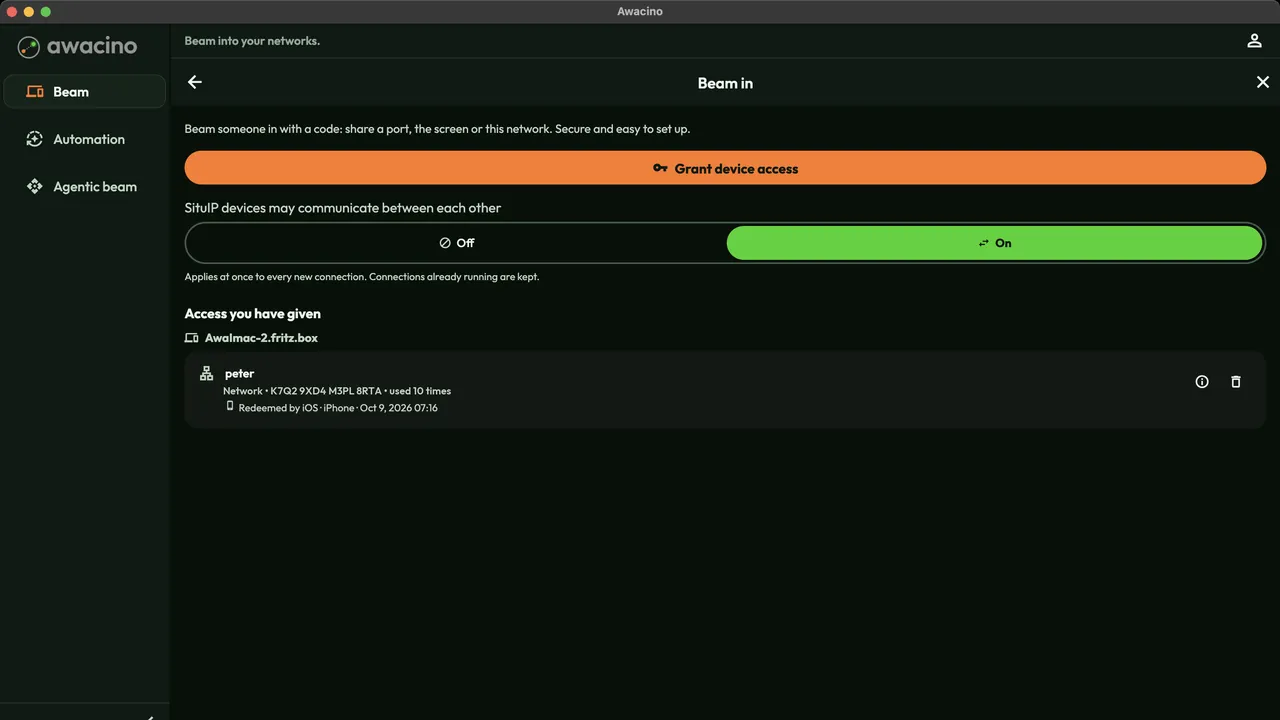
Under "Access you have given" Ben sees every code and who uses it - and switches it off with one tap when the work is done.