Beam out: into a network
Beam out connects the device in your hand into another network. There are two ways: into the network of one of your own devices, or with a code somebody sent you.
Into the network of one of your devices
- On the Beam page, find the device under My devices. It needs a green dot (online).
- Tap Connect on its tile.
- Choose how much you want to reach (see below), then Beam this device into …'s network.
- Choose what your connection carries, and tap Beam into network.
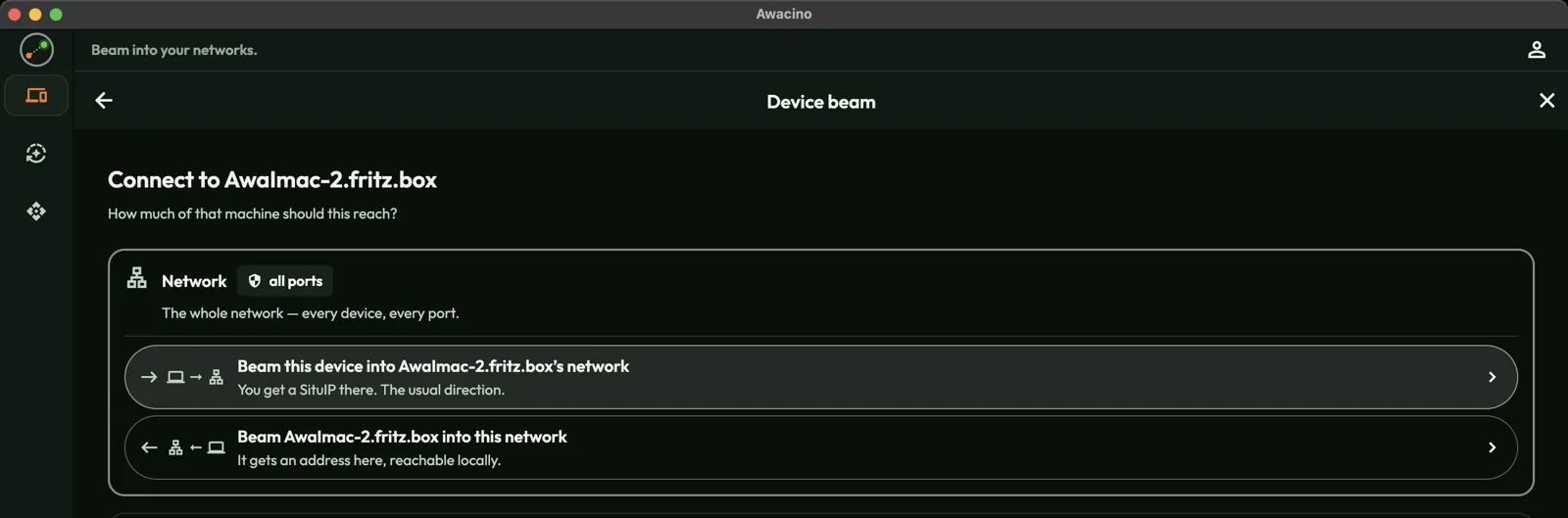
- Network: the whole network over there, every device and every service. This is the usual choice.
- Screen (VNC / RDP): only the screen of that machine.
- One port: exactly one service, for example a web app or a database, and nothing else.
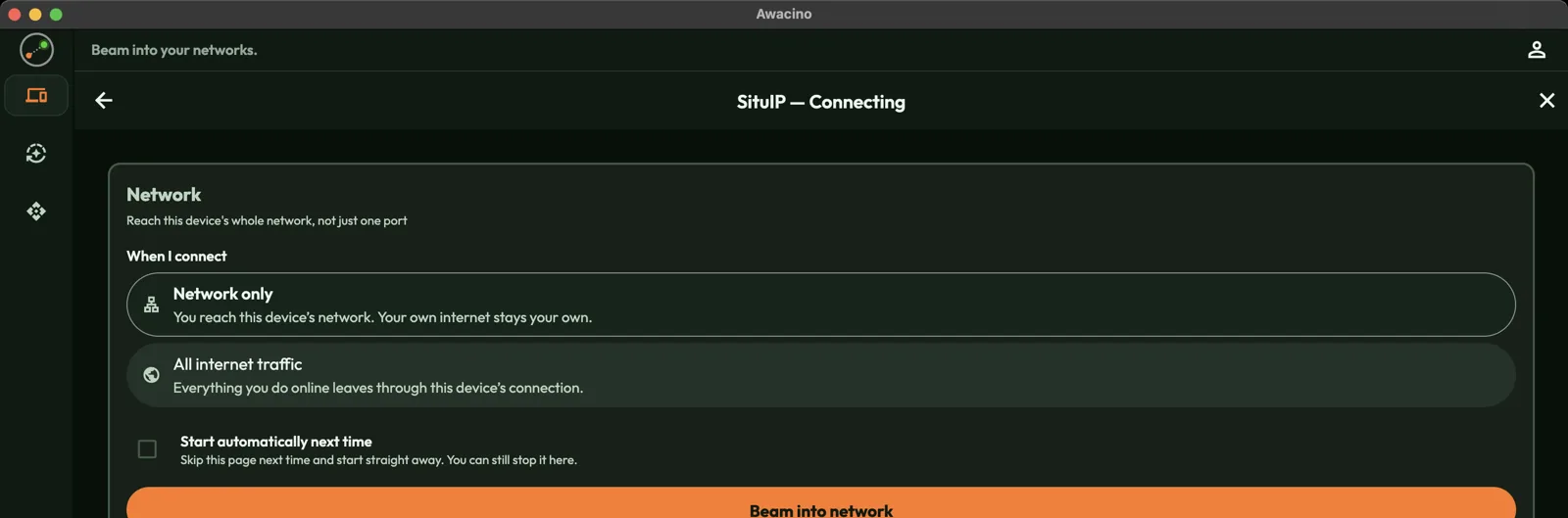
- Network only: you reach that network. Everything else, like websites, still goes through your own internet.
- All internet traffic: everything you do online leaves through that device's connection, as if you were sitting there.
- Start automatically next time skips this page the next time and connects straight away.
While it connects
Awacino shows each step: the tunnel is set up, the network becomes reachable, and the direct path between the two devices is found. When you see Ready to use and direct · encrypted, you are in.
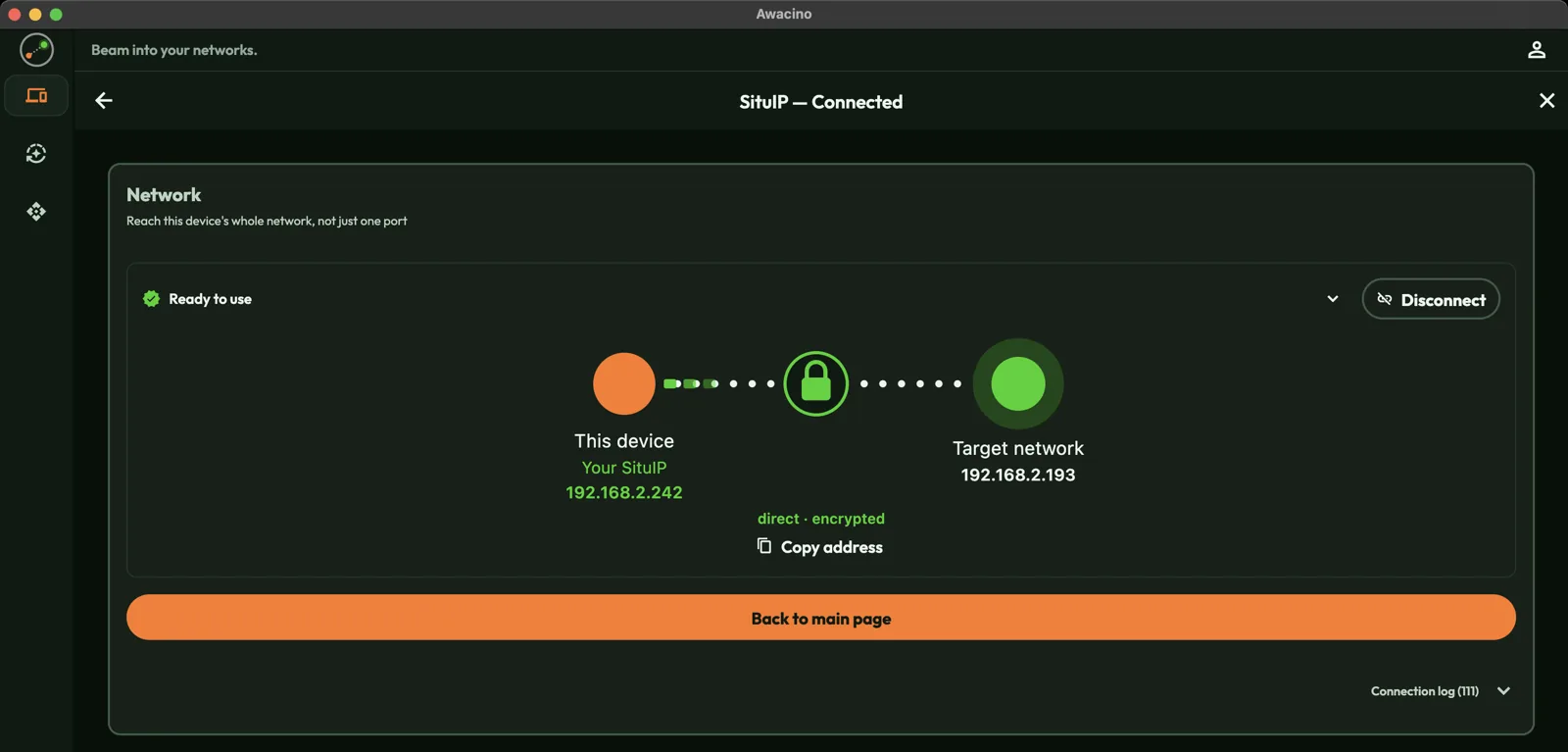
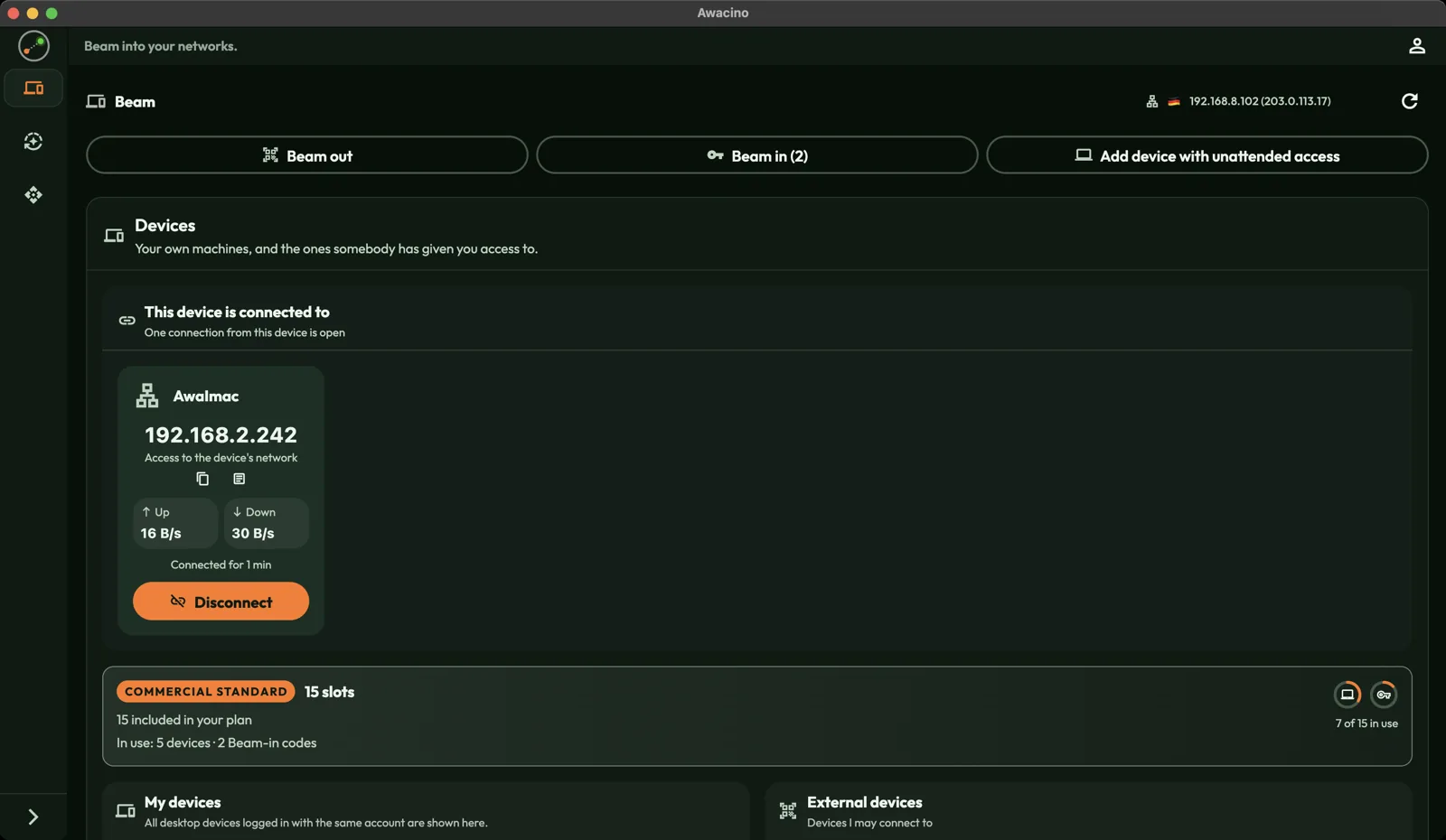
Your SituIP is shown under This device. With Copy address you can paste it wherever you need it. Back on the Beam page, the connection stays visible at the top with the data going up and down, and a Disconnect button.
With a code somebody sent you
- Tap Beam out on the Beam page.
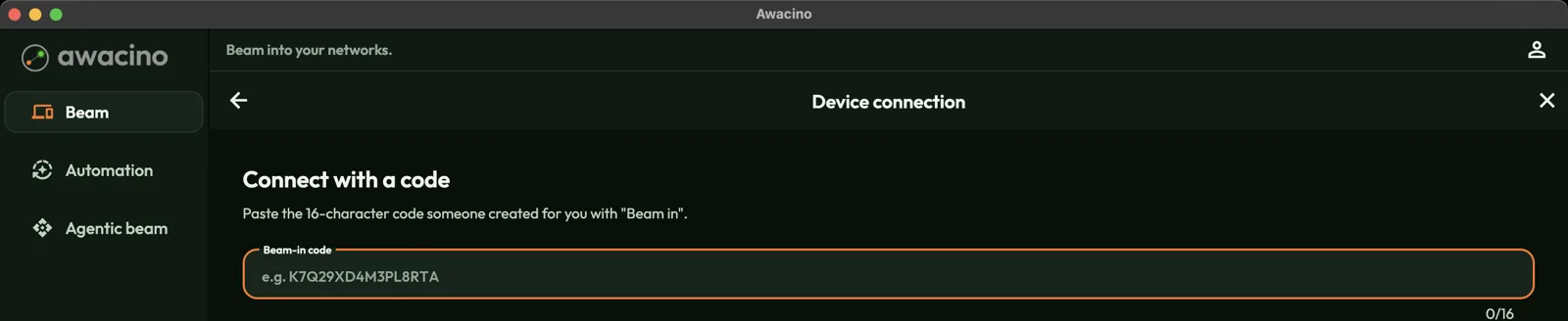
- Choose Connect with a code.
- Paste the 16-character code, or scan its QR code on a phone, and tap Connect.
The code decides what you can reach and for how long. The person who created it can end the access at any time. Devices you reach this way are listed under External devices.
Testing at home? If both devices are in the same Wi-Fi, switch your phone to mobile data first. Then you really connect from outside.