Getting started
Awacino puts you inside a network that is somewhere else: your home, your office, or a network somebody invited you to. This page explains the idea and shows you around the app.
The idea in one minute
Normally your phone or laptop can only reach the devices in the network you are in right now, for example your home Wi-Fi. Awacino changes that. When you beam out, your device gets an address inside another network, as if it were standing there. We call that address your SituIP.
Everything in that network then answers you as usual: the printer, the NAS, the smart-home hub, a computer's screen. Nothing has to be opened on the router, and the connection goes directly from device to device, encrypted from end to end.
The other way round, beam in lets somebody else into one of your networks: you create a code, send it, and decide what it allows and for how long.
Install and sign in
- Install Awacino on the device you want to use, and on one device in each network you want to reach. You find every version on the download page.
- Open the app and sign in with Apple, Google, Microsoft or your e-mail address. Use the same account on all your devices: that is how they find each other.
- That is it. Every device signed in with your account appears in the app.
The Beam page
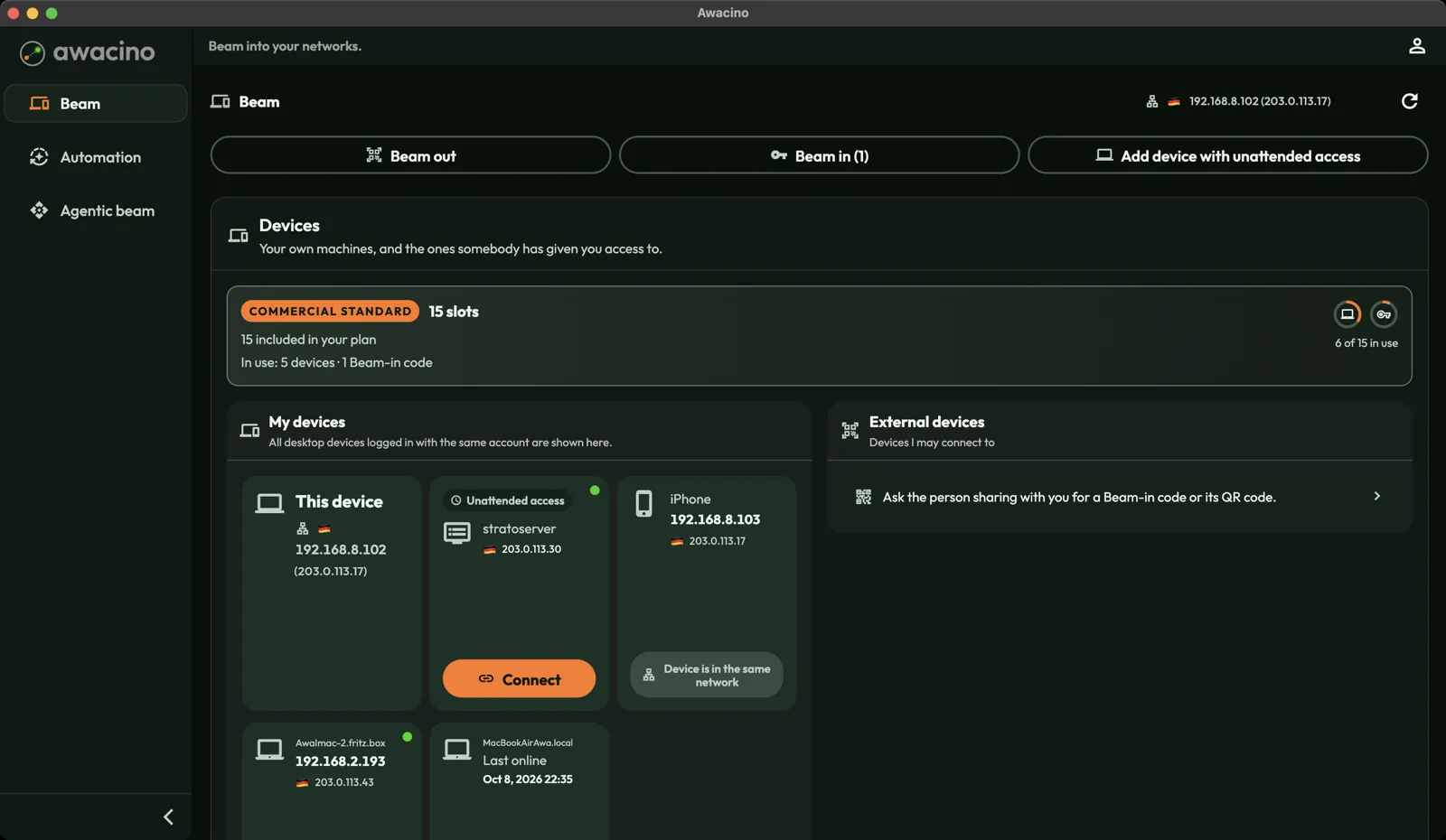
- Beam out: connect into a network, either one of your own or one you have a code for.
- Beam in: give somebody access to one of your networks with a code. The number in brackets shows how many codes are active.
- Add device with unattended access: set up a computer, server or Raspberry Pi that stays reachable with nobody logged in.
- The slots card shows your plan and how many slots are in use. A slot is one device or one active Beam-in code.
- My devices lists every computer signed in with your account. A green dot means the device is online right now.
- External devices are devices somebody else shared with you through a Beam-in code.
On the left you find Beam, Automation and Agentic beam. The person icon at the top right opens your account and settings.