Documentation
Beam in: share your network
Beam in lets somebody else into one of your networks. You create a code, send it, and decide exactly what it opens and for how long. Switching the code off ends the access.
The Beam in page
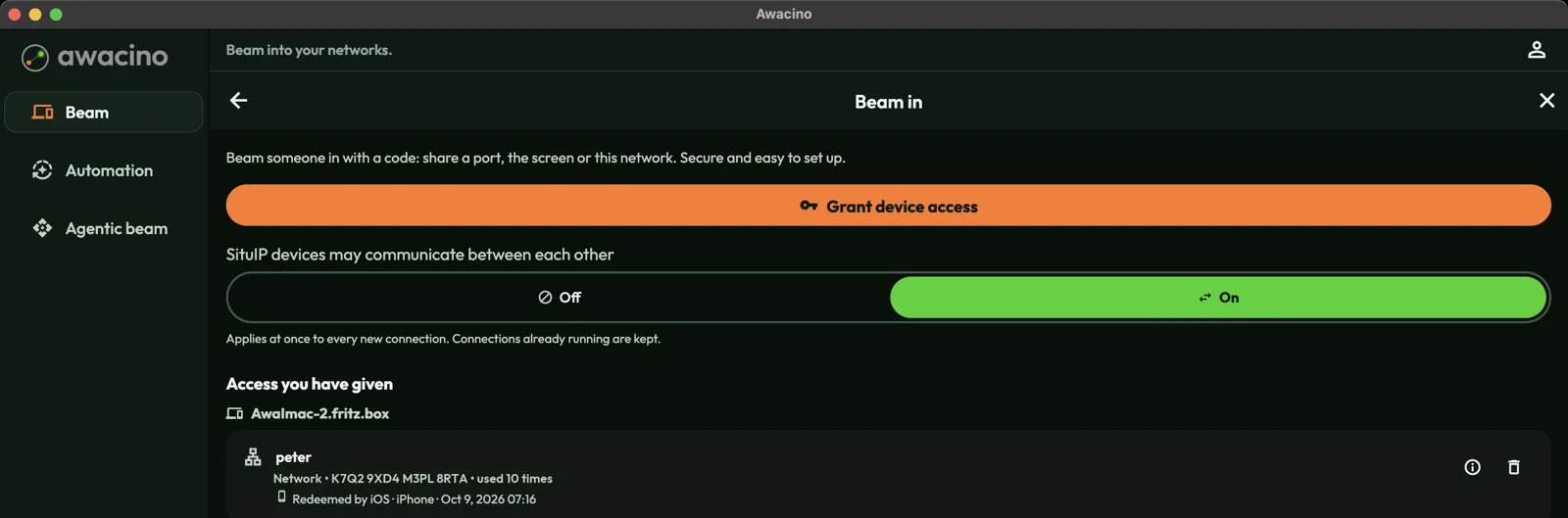
- Grant device access creates a new code.
- SituIP devices may communicate between each other: when this is on, people you let in can also reach each other. When it is off, each of them only reaches your network. The change applies to new connections.
- Access you have given lists every code: who it is for, what it opens, the code itself and how often it was used. Use the bin icon to delete a code: the access ends right away.
Create a code, step by step
- Tap Beam in on the Beam page, then Grant device access.
- Which machine is this code for? Choose the device whose network you want to share. It can be any device on your account, not only the one in your hand.
- How much of this machine should the other person be able to reach? Choose Network, Screen or One port (see below).
- What this device will carry: choose whether the other person only reaches your network, or may also use your internet connection.
- Who is this code for? Enter a name you will recognise later, for example "Jonas IT partner".
- Tap Create the Beam-in code.
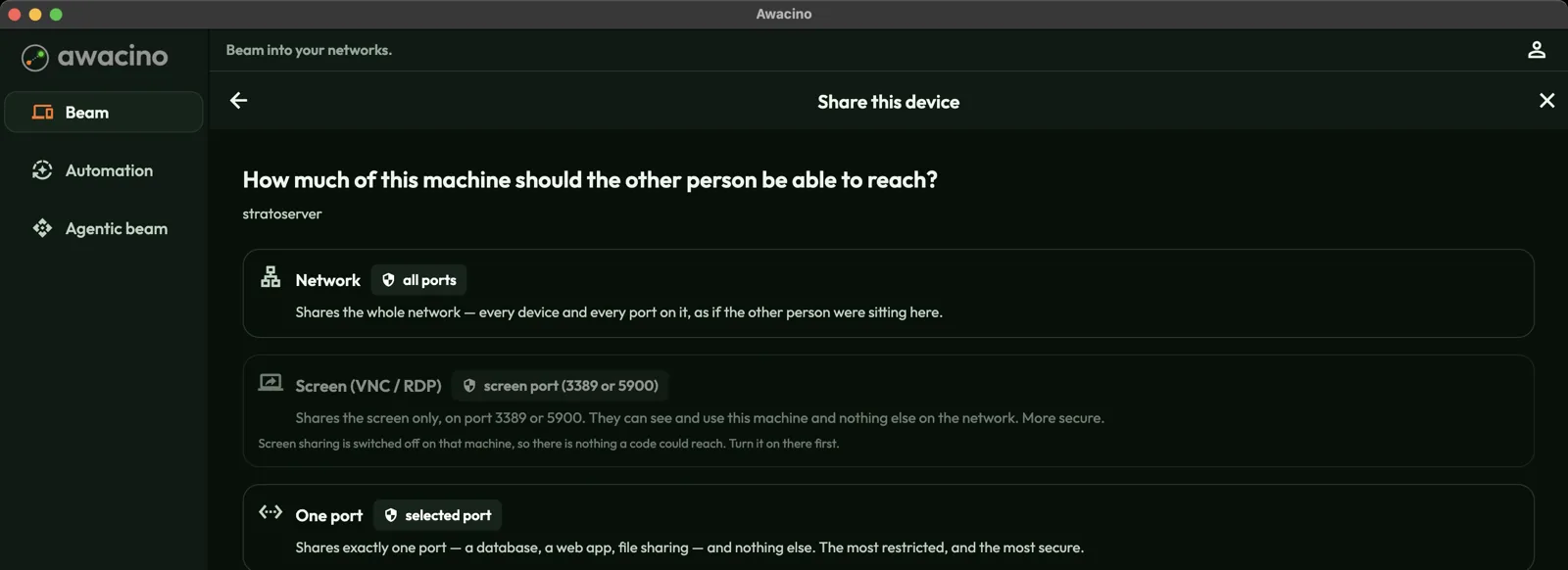
- Network: your whole network, every device and every port, as if they were sitting at your place.
- Screen (VNC / RDP): only the screen of that machine. They can see and use it, nothing else on the network.
- One port: exactly one service, such as a web app or a file share. The most restricted and the most secure choice.
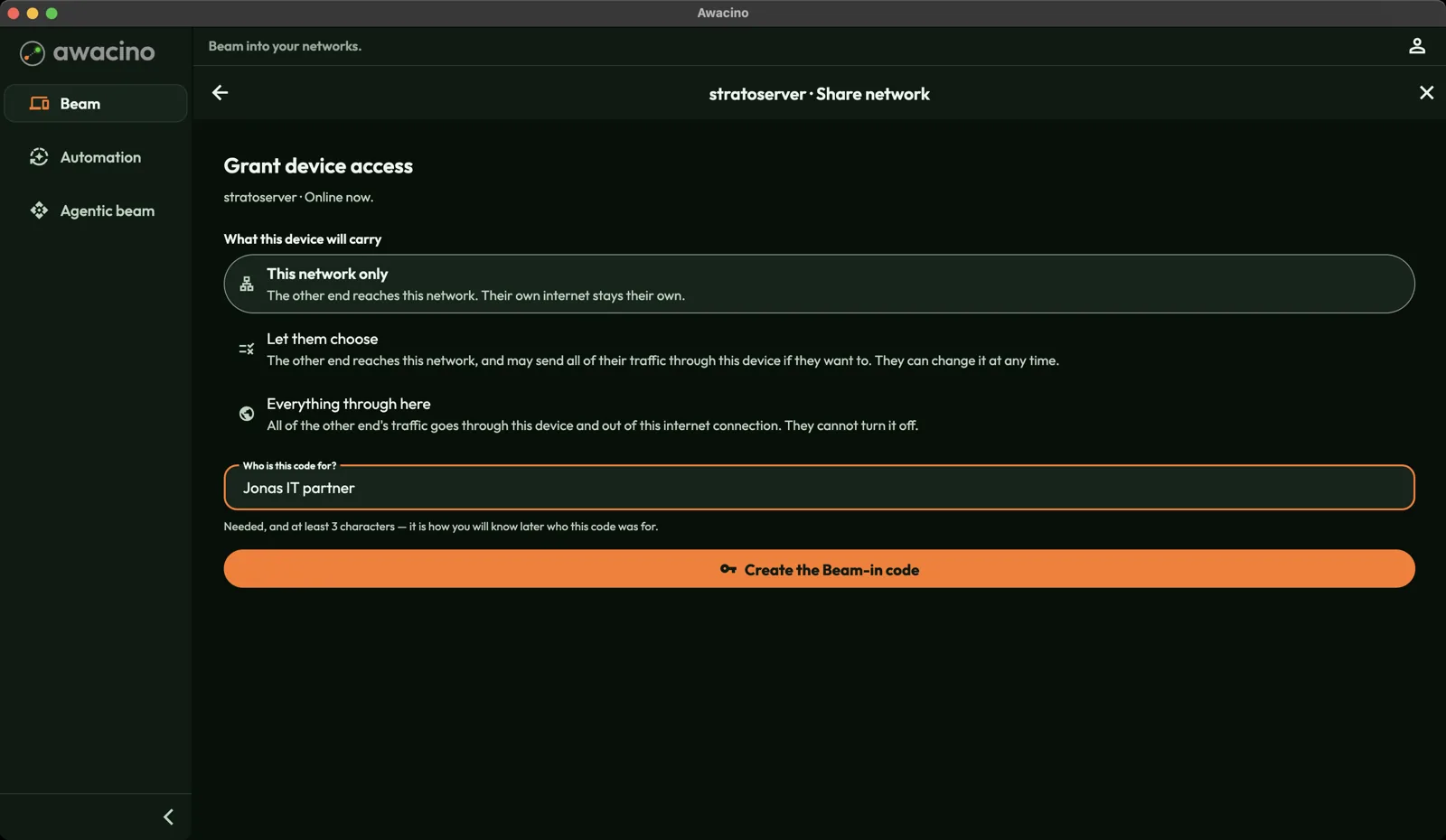
- This network only: they reach your network. Their own internet stays their own.
- Let them choose: they reach your network and may also send all their internet traffic through your connection, if they want.
- Everything through here: all their internet traffic goes through your connection. They cannot switch it off.
Send the code
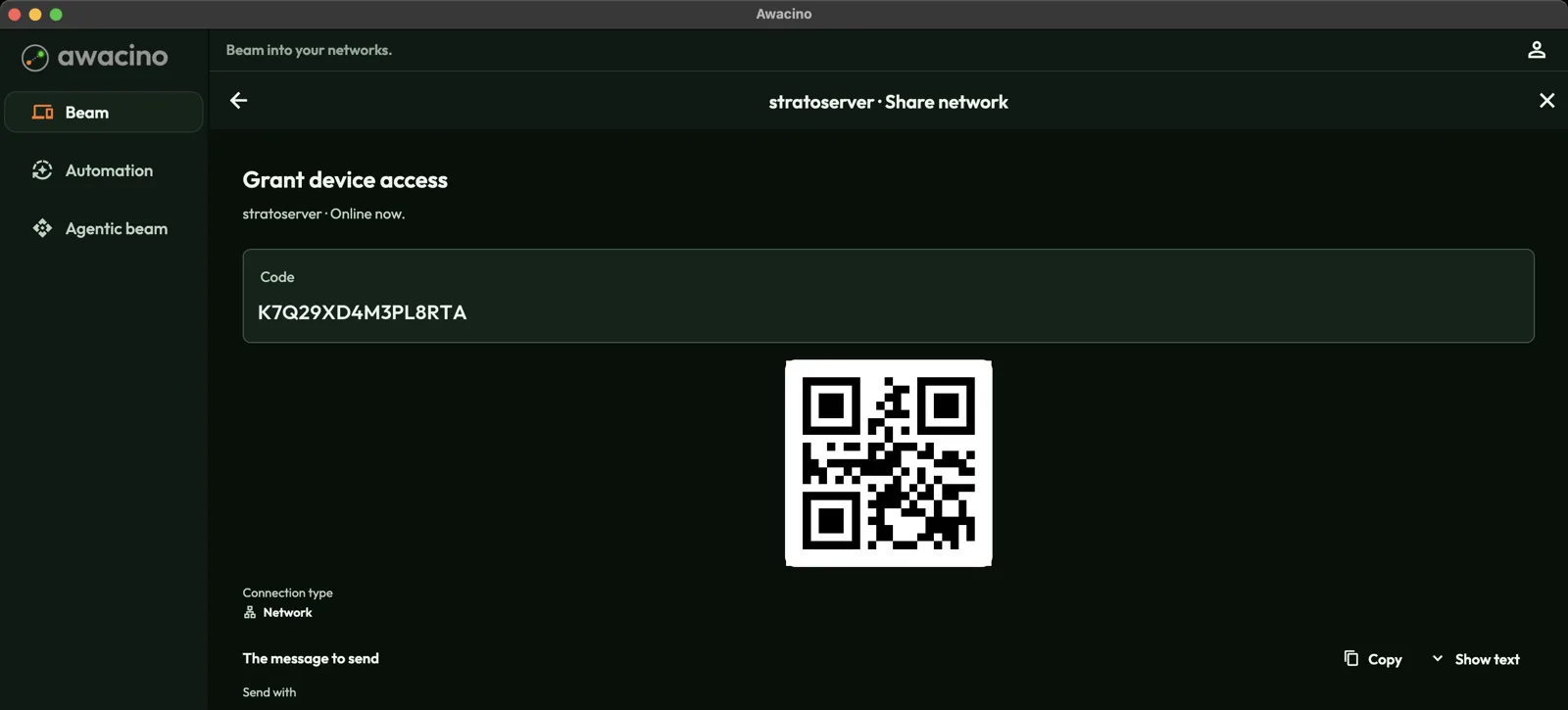
The code has 16 characters. Send it the way you like: copy the prepared message, or send it by mail, message or any app. On a phone, the other person can simply scan the QR code.
They open Awacino, tap Beam out, enter the code and are connected. They need no account of yours, and they only get what the code allows.
Every active code takes one slot of your licence. Delete codes you no longer need: that ends the access and frees the slot.