
Your office Mac screen, from anywhere
Six steps - Screen Sharing on the Mac, Awacino on your side, and the Mac is in front of you.
No credit card needed · cancel anytime · secure checkout with Stripe
Remote desktop, step by step
Switch it on once on the office Mac, then reach it from anywhere through Awacino - your usual remote desktop or terminal app, no VPN, no open port.
- Awacino and a screen-sharing app on your laptop or phone
- Awacino on the office Mac or on a device in its network
- A company account - every plan, also Company Free
- 1
Turn on Screen Sharing
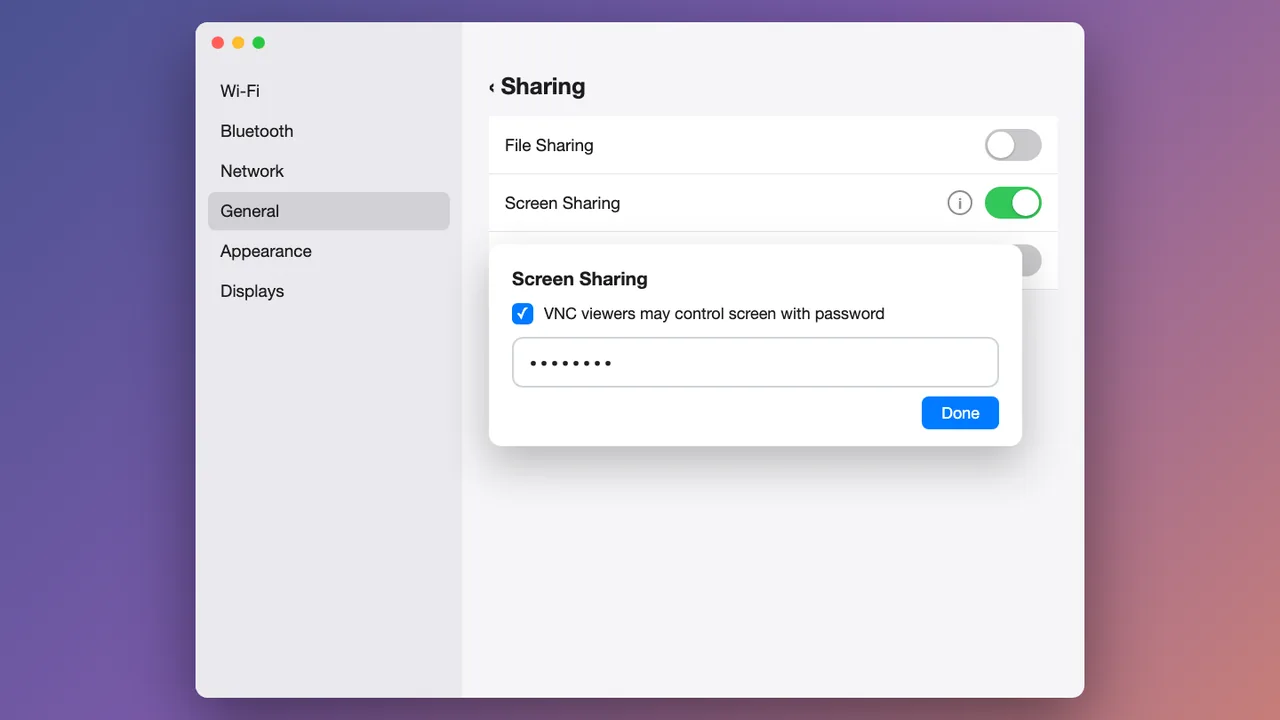
On the Mac open System Settings → General → Sharing, turn on Screen Sharing, open its (i) and allow viewers with a password.
Pick a strong password - it is asked by every screen-sharing client.
- 2
Connect to the office Mac in Awacino
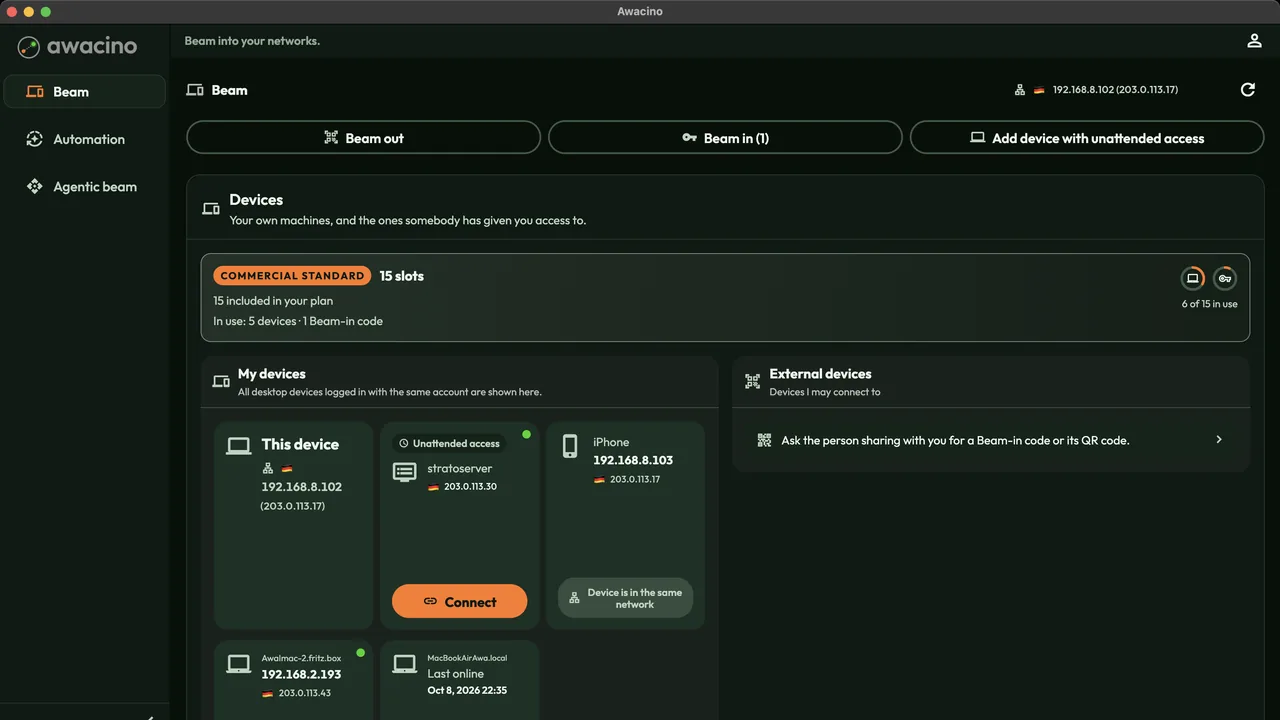
On your laptop or phone, open Awacino. Under My devices you see every company device you may reach - tap Connect on the office Mac.
- 3
Beam into its network
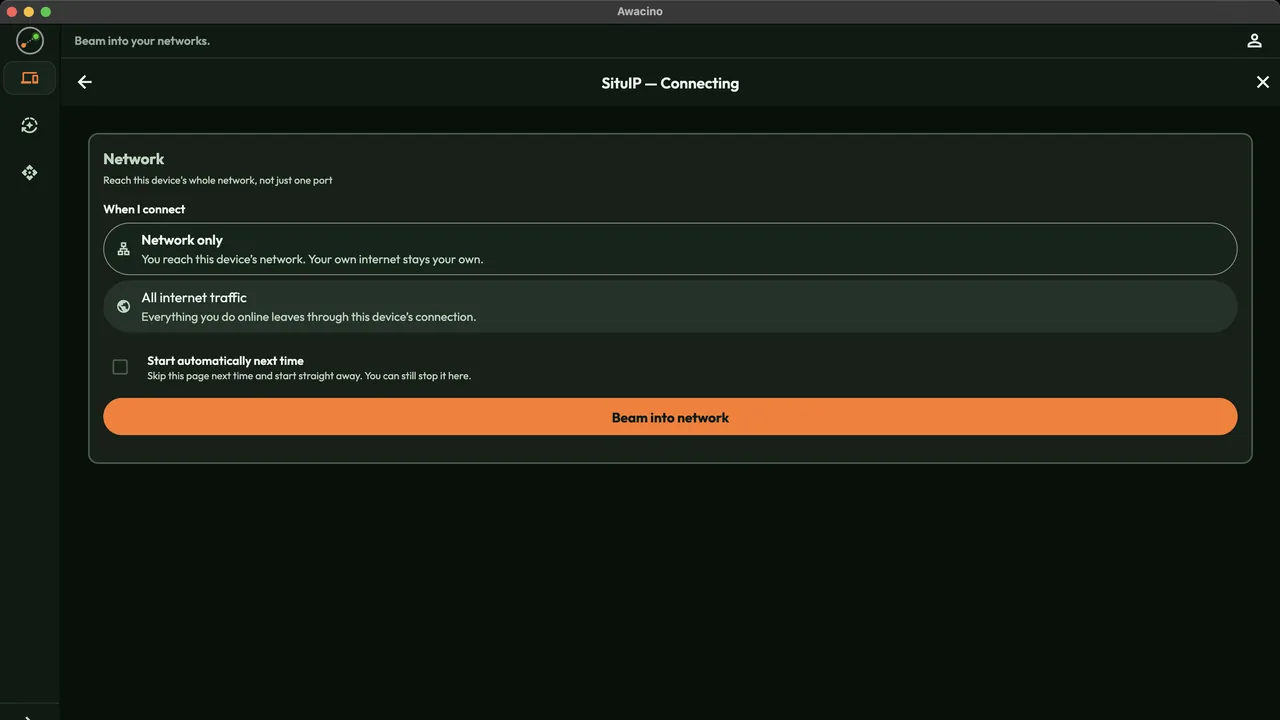
Choose Network, leave Network only selected and tap Beam into network. Your own internet stays your own.
- 4
Copy the office Mac's address
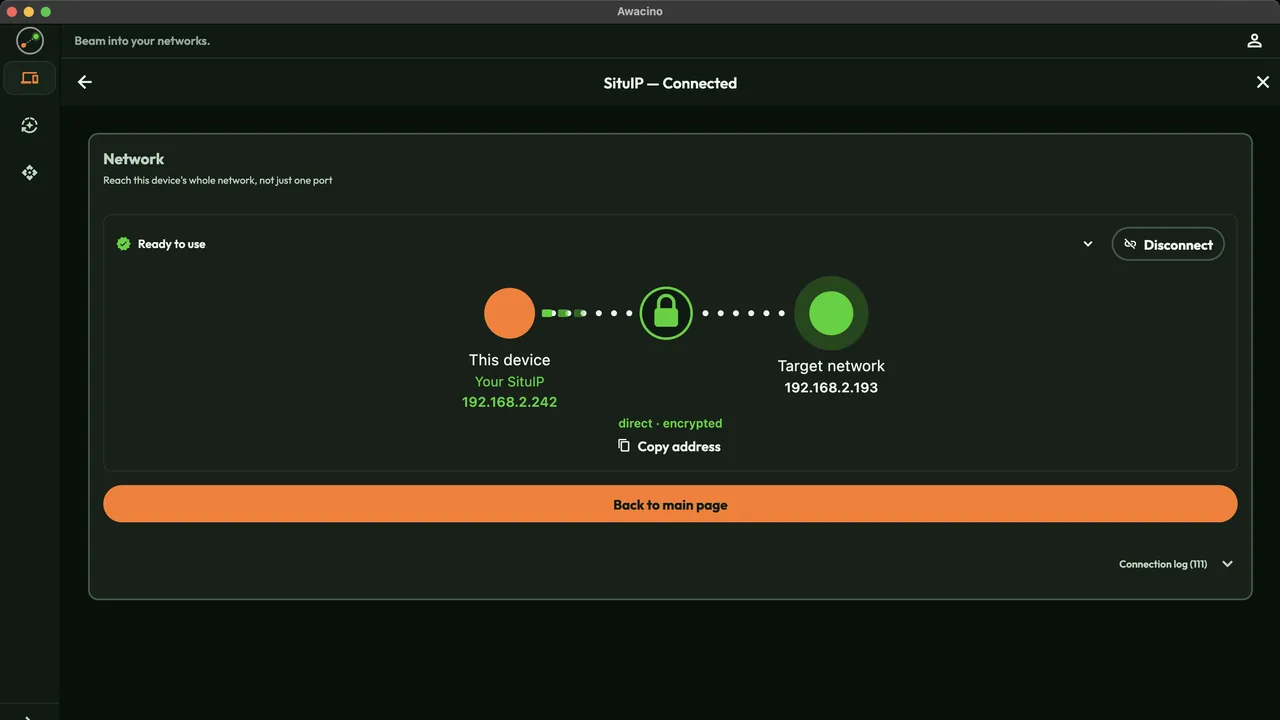
In a few seconds Awacino shows Ready to use. Your device now has its own address in that network, its SituIP. Tap Copy address.
The connection is direct and end-to-end encrypted - no VPN gateway, no open port in the office.
- 5
Open your screen-sharing client
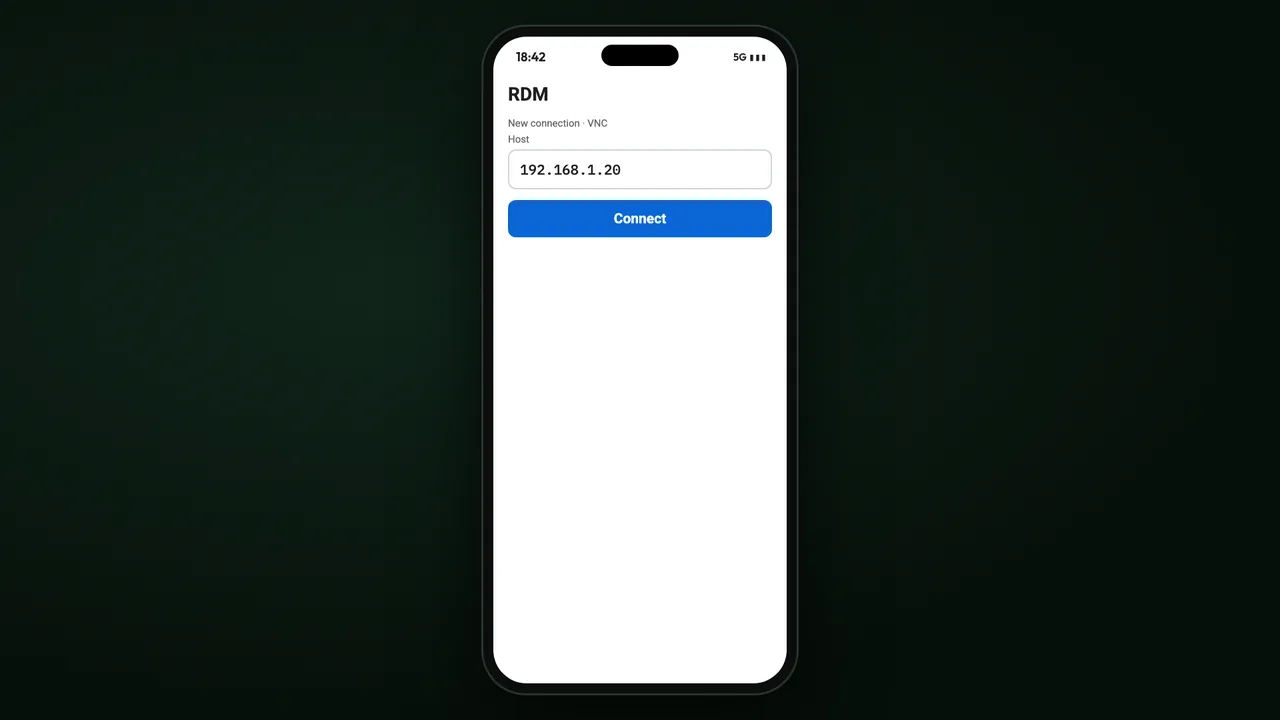
Open a screen-sharing client on your phone or laptop (for example Remote Desktop Manager), paste the address and tap Connect.
- 6
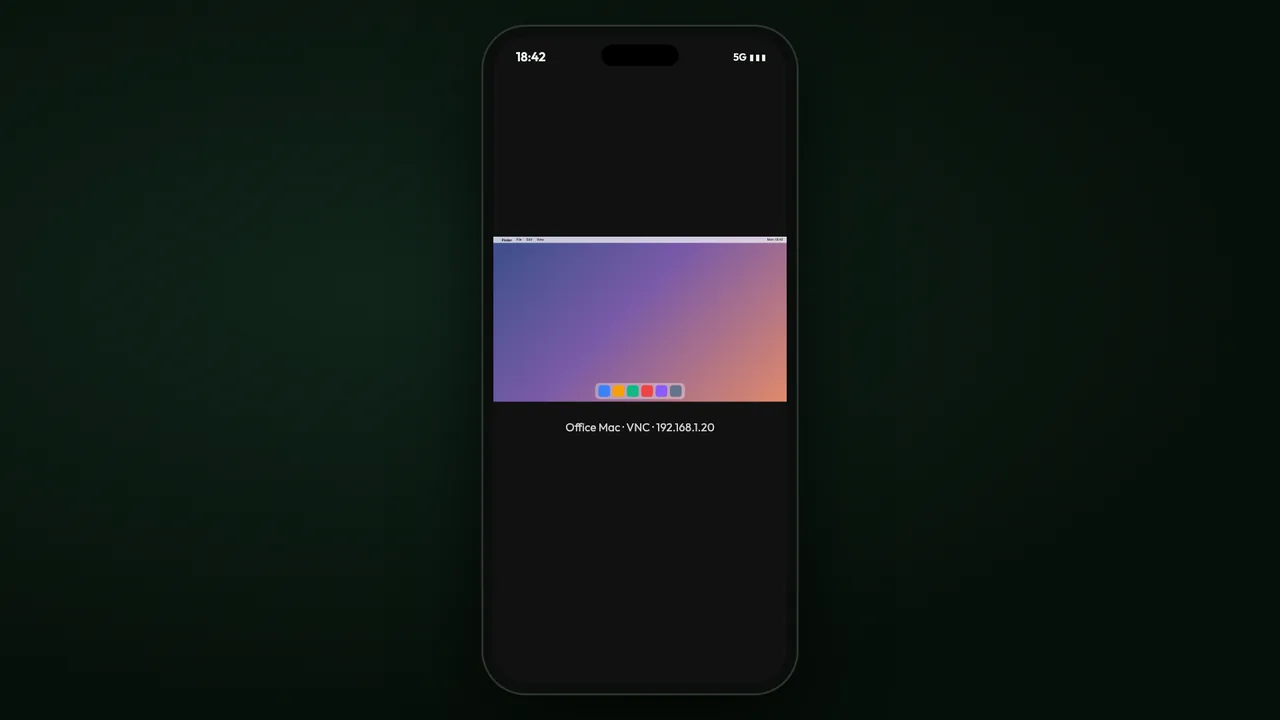
Your office Mac
The Mac's screen opens - control it as if you sat in front of it.
Where to go from here
Reach every office computer from anywhere
Every company plan: 30 days free, no card. Or start on Company Free.
No credit card needed · cancel anytime · secure checkout with Stripe